How to automate invoice entry into QuickBooks or Xero
Retyping supplier invoices into QuickBooks or Xero is the slowest part of most bookkeeping months. You can automate it — but only some of the options actually keep your numbers right. Here is what each one does, and where each fits.
The manual way (and why it doesn't scale)
The usual process: an invoice lands by email, someone downloads the PDF, reads it, and types the vendor, date, tax and total into QuickBooks or Xero — then files the PDF. It works at a handful a month. Past that, two things break: volume (2–5 minutes per invoice adds up to 10–25 hours a month at a few hundred), and accuracy (one mistyped total sits quietly in the ledger until reconciliation, when you have to hunt it down).
What "automatic" actually means
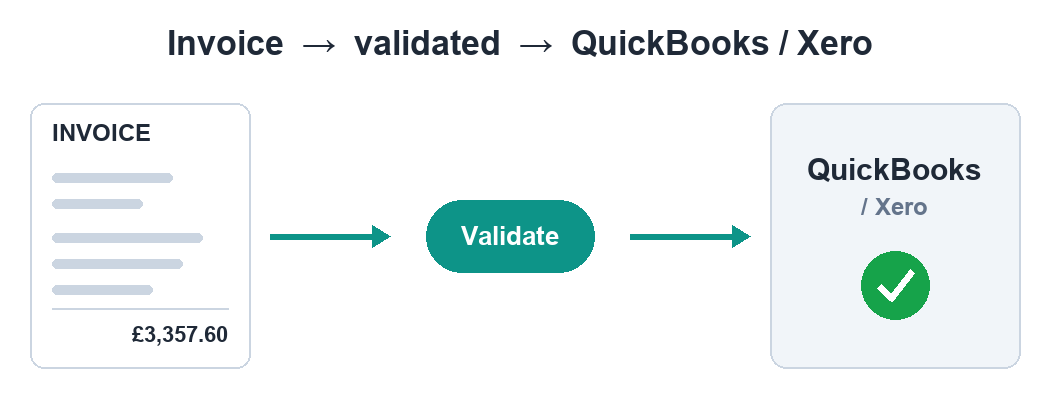
Real automation removes the keying step: an invoice is captured → its fields are extracted (vendor, invoice number, dates, tax, totals, line items) → the numbers are validated → the data is imported into QuickBooks or Xero. Skip the validation step and you have only made the errors arrive faster.
Option 1 — QuickBooks & Xero's built-in capture
Both have this. QuickBooks has receipt/bill capture; Xero bundles Hubdoc. You email or upload a document and it tries to read the key fields into a draft bill. For low volume and clean, familiar suppliers, it is genuinely useful and already included. The limits: you still review nearly every document, it misreads unusual or multi-line layouts, it works one at a time, and — crucially — it does not cross-check the maths. It reads a total; it does not confirm the total is internally consistent.
Option 2 — CSV / bulk import
Both QuickBooks and Xero accept a CSV import if you map the columns to their template. This is the fast route for volume — but it is only as good as the data you feed it. A CSV of wrong figures imports just as smoothly as a CSV of right ones. Bulk import solves the typing, not the checking; the numbers have to be correct before they hit the file.
Option 3 — Extraction with validation, then import
The approach that removes both the typing and the risk: AI vision reads any layout, scanned or digital, in batch, returns structured fields, and a QA step reconciles the numbers — line items sum to the subtotal, subtotal plus tax equals the total, required fields present. Only what reconciles flows through; genuine exceptions are flagged. The clean result is exported as a QuickBooks/Xero-ready CSV or pushed in directly, so the figures land in the shape your books expect.
The check that keeps your books right
This is the step the quick options skip. Suppose a total of 3,357.60 is misread as 3,300.00. Built-in capture or a raw CSV imports that confidently — and it is wrong in your ledger until a reconciliation weeks later refuses to balance and you go looking for it. A validation layer catches it at import time, because subtotal plus tax no longer equals the total. Validated data is the difference between "imported" and "imported correctly".
Which approach fits you
Under ~30–50 invoices a month, one accounting tool: QuickBooks or Xero's built-in capture is usually enough — review each draft and post. Higher volume, mixed vendors and layouts, or a bookkeeper across several clients: extraction with validation, then a clean import, scales without adding hours and stops errors before they reach the ledger. The more clients and documents you carry, the more that gap compounds.
Skip the manual work
DocAuto turns your invoices, receipts and bills into clean, validated spreadsheet data — every figure checked before you get it.
Send a document — free sample